
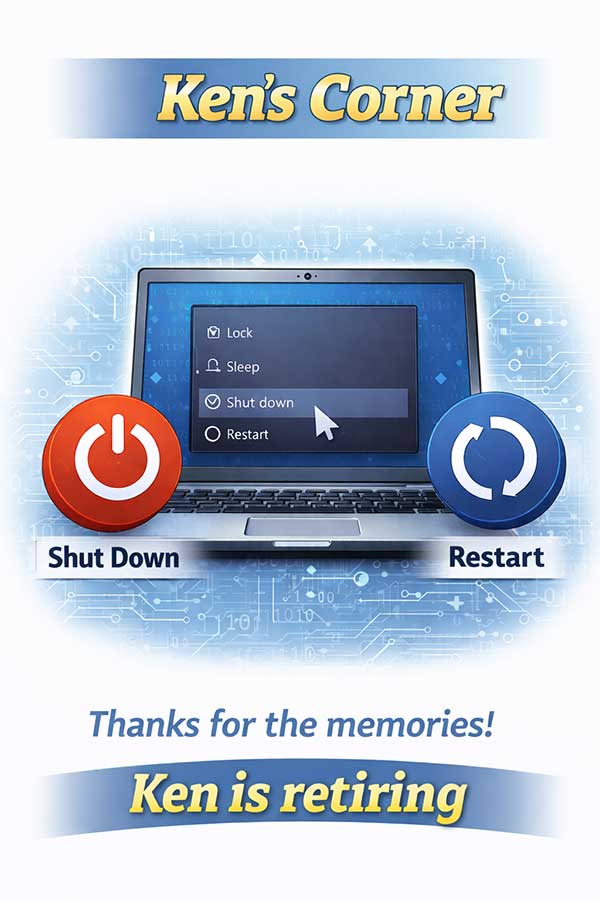
 Ken's Corner - Ken's Retiring
This Ken’s Corner is both hard to write and easy to write. I’ll explain later.
To turn on, or not turn on? That’s a question we’re going to play with today.
In the early days of home computers, common wisdom said if you weren’t using your computer, you turned it off. Otherwise, the images onscreen would “burn” into the display.
Today’s screens are constructed differently, and the possibility of a screen retaining an image is extremely remote. In addition, today’s computers use a lot less power than systems of old, requiring pennies a day to operate. These factors make the act of turning off a computer actually more a choice than a requirement.
Some programs actually require you to leave your system on as much as possible, if not constantly. For instance, we offer an anti-virus program called EDR (Endpoint Detection and Response), which requires a system be on 24/7. The reasons for this are manyfold, but it’s mainly because viruses and malware don’t sleep. They’re constantly active and can plant their seeds in your computer even if it’s dormant. EDR searches these problems out and defeats them before they have a chance to do any damage.
Still, it’s very important to restart a computer regularly; once a week or less depending on usage. This gives your memory a chance to clear data it’s no longer using and keep it running at full speed.
It’s also critical you restart your computer or turn it off correctly.
One of the worst things you can do to a computer is turn it off using the start button. Don’t get me wrong, this isn’t bad for your computer; but it can be bad for your data. Without going through a proper shutdown procedure, abrupt program shutdowns can damage your data and programs which can cause them to run improperly or, in extreme cases not at all. That’s why holding the power button, sometimes called a hard reboot, should only be done if your system is locked and can’t be shutdown in any other way.
Your best option is always using the OS (Operating System) to turn your system off or restart it. On Windows machines, once you have all your programs turned off, you can either move your cursor over the Windows emblem and click or press the Windows button on your keyboard (Just to the left of the “Space” key.). Doing this opens your control window. In the bottom right corner is a circle with a vertical line through the top. Clicking that will give you four options: “Lock,” “Sleep,” “Shut down,” or “Restart.” “Shut down” will turn your computer all the way off, while “Restart” refreshes your memory by doing a soft reboot with no chance of damaging programs.
Now, that “hard/easy” part I mentioned earlier: This is the last Ken’s Corner. I’ll be retiring on March 6 after ten years of helping some of the nicest people I’ve met. I’ve learned a lot while I’ve been here, but the person replacing me will be a lot more knowledgeable to begin with, and eager to learn and help you with your needs. You’re going to be in good hands.
Thanks for the memories, and have a great life!
K.