

Blog
Company News, Insights, & Technology Updates
Stay informed with our latest news, milestones, specials, practical advice, community support, and expert guidance from Connecting Point Computer Center.
From cybersecurity and managed IT to website strategy and digital marketing, our blog helps local businesses make smarter technology decisions.


POTW 7-20-2026
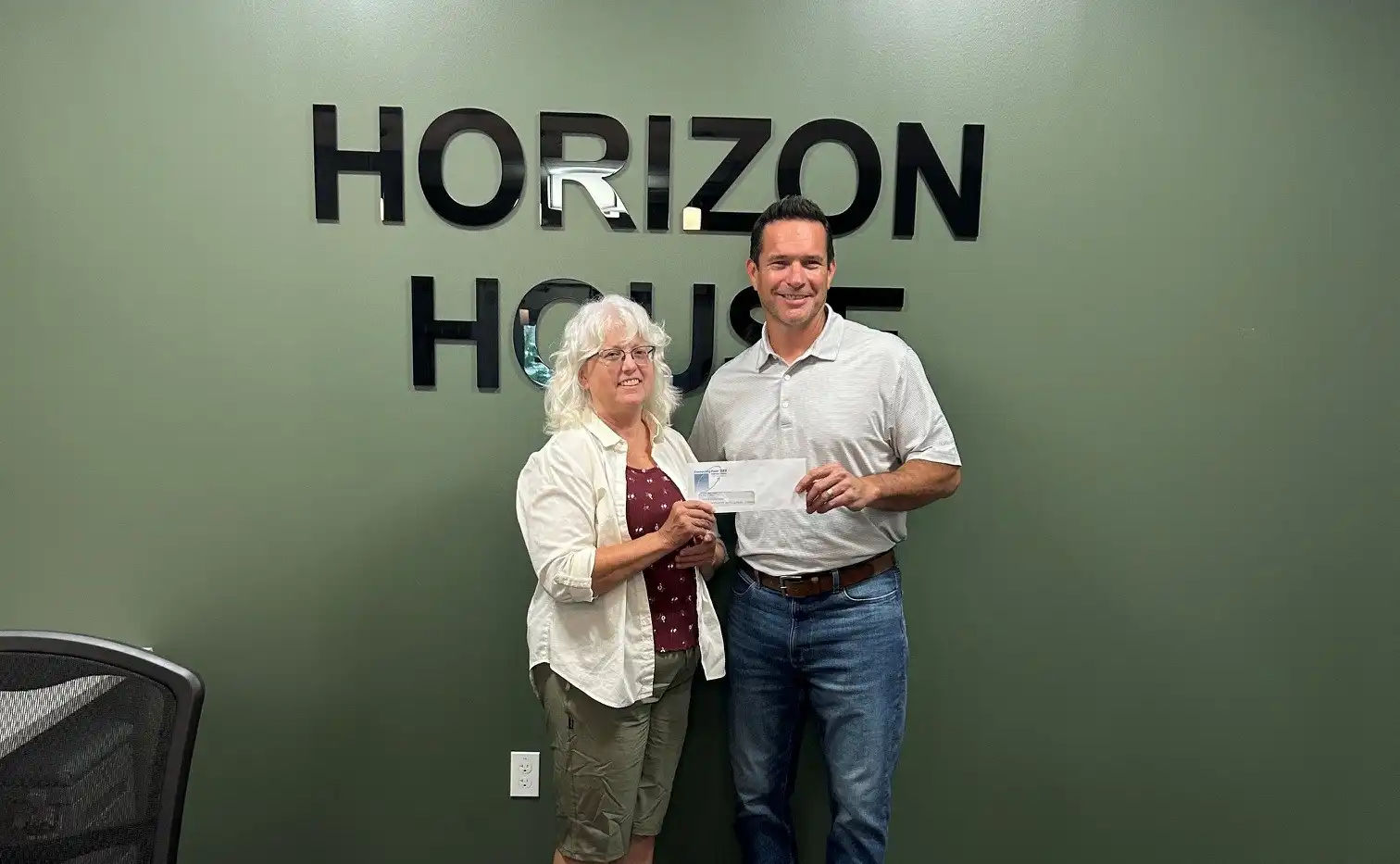
June 2026 Jean Day Donation
June 2026 Jean Day Donation to Horizon House.
June 2026 Jean Day Donation to Horizon House with John Riva and Michell Rich, CEO
John Riva of Connecting Point presents
Michell Rich, CEO of Horizon House with a donation check.
Connecting Point Computer Center is proud to participate in our June Jean Day fundraiser in support of Horizon House in Peru, Illinois.
Beyond 4K?
In an era dominated by instant streaming, some might assume physical media has been left behind. Yet for a growing community of cinephiles and movie enthusiasts, 4K Ultra HD Blu-ray has become something else entirely: a niche pursuit, a collector’s medium, and most importantly, the definitive way to experience film at its highest possible fidelity.
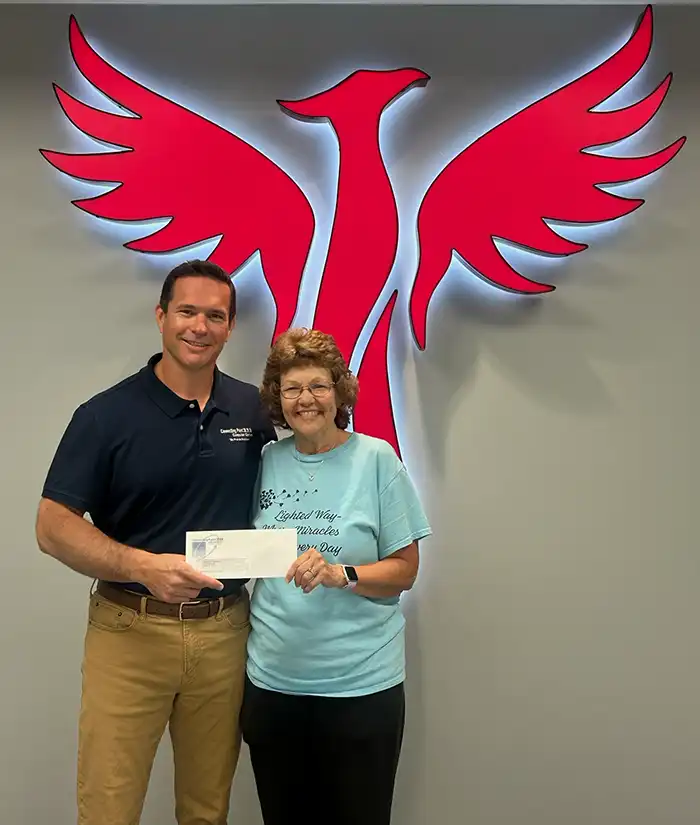
May 2026 Jean Day Donation
May 2026 Jean Day Donation Supports Lighted Way John Riva of Connecting Point presents Jessica Kreiser,Executive Director of Lighted Way with a donation check. Connecting Point is proud to recognize Lighted Way as the recipient of our May 2026 Jean Day Friday…

History
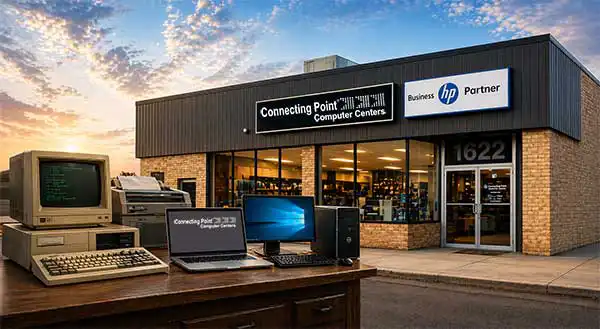
Since 1966, Connecting Point Computer Center has been helping businesses embrace technology, improve efficiency, and achieve success.
About Us
About Us Serving the Illinois Valley since 1966 For decades, Connecting Point has evolved alongside the changing technology needs of businesses and families throughout the Illinois Valley. What began as a trusted accounting firm grew into a full-service computer…
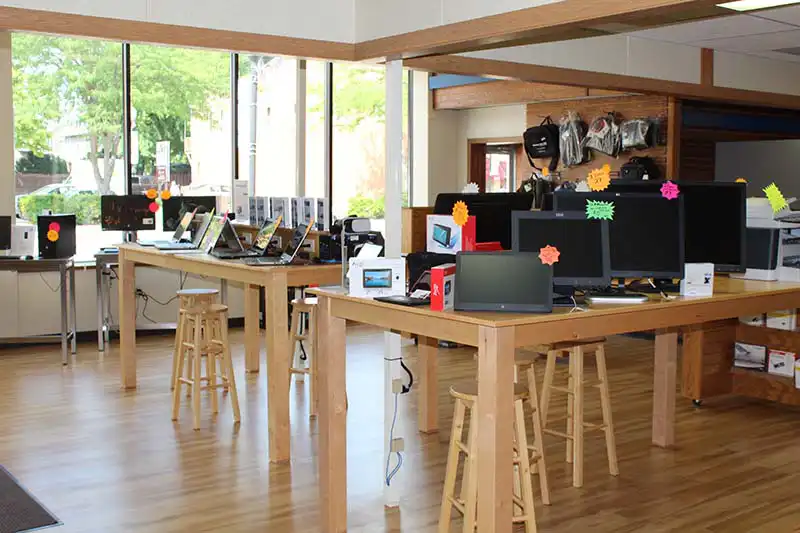
Retail Outlet
Retail Outlet Visit Our New & Expanded Computer Showrooms Where you get more than a computer — you get personal customer service. From printer replacement cartridges to monitors, desktops/notebooks, and accessories, we make it easy to find the right technology…

Getting around the ‘Net
Getting around the ‘Net This year marks the 34th anniversary of the Web Browser, and while it’s difficult to imagine the Internet existed without them, the first eight years of the web (The generally accepted birthdate of the Internet is January 1, 1983.) were tricky…
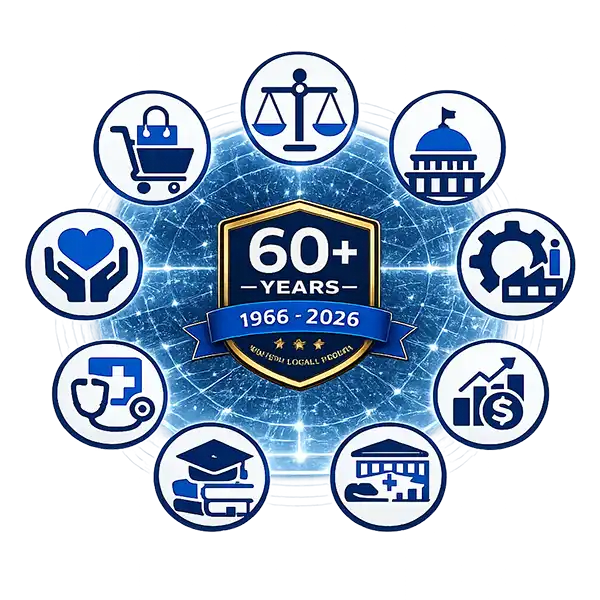
Industries Served
Industries Served Complete Technology, Security, and Digital Growth Solutions Every industry has unique operational, compliance, and customer engagement requirements. Connecting Point Computer Center provides a fully integrated suite of services—including Managed IT,…

April 2026 Jean Day Donation
At Connecting Point Computer Center, giving back to our community is part of who we are. In April 2026, our team proudly participated in our monthly Jean Day initiative, raising funds in support of IVAR.
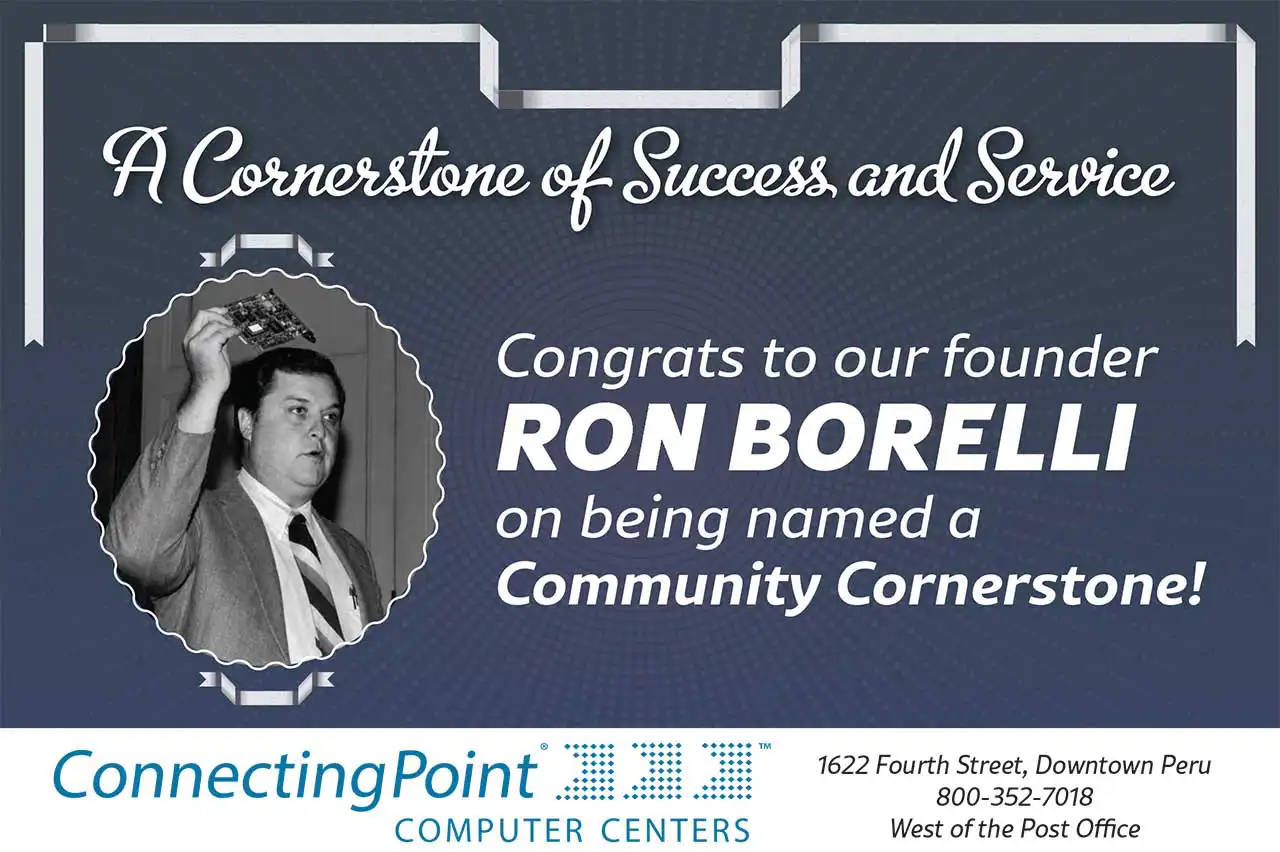
Cornerstone Award Ron Borelli
Celebrating the Cornerstone Award, Ron Borelli We’re really proud to share that our founder, Ron Borelli, has been named an IVAC Community Cornerstone for 2026! If you’ve spent any time around Ron, this makes perfect sense. He’s genuinely one of the nicest people…
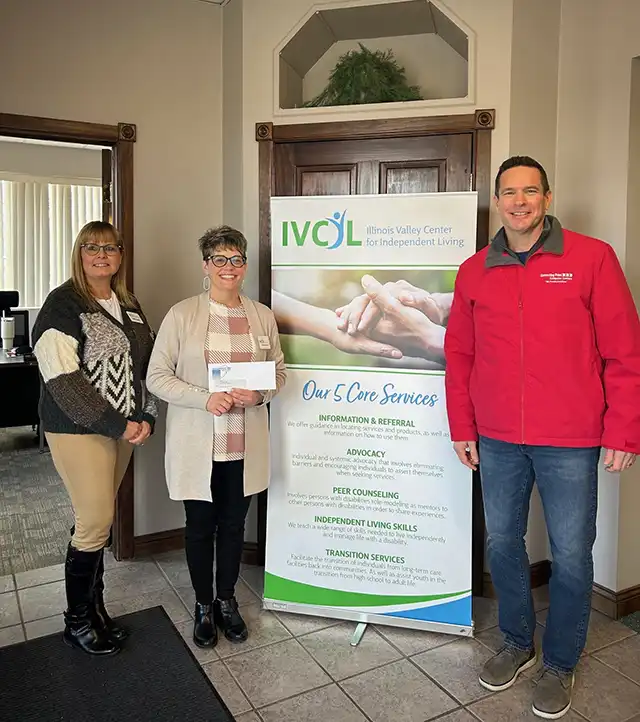
March 2026 Jean Day Donation
March 2026 Jean Day Donation Recipient: IVCIL
feb 2026 jeans day donation
John Riva from CPCC presents a check to Beth Rockford, Associate Director, and Marie Argubright, Executive Director of IVCIL
For our March Jean Day, Connecting Point is proud to support the Illinois Valley Center for Independent Living (IVCIL)

Employment
Employment Join Our Team See the opportunities below. To apply for a position, mail your cover letter and resume to Connecting Point to Jeff Borelli, President. If you’re as excited about what you do as we are, you belong at Connecting Point Computer Centers. Because…
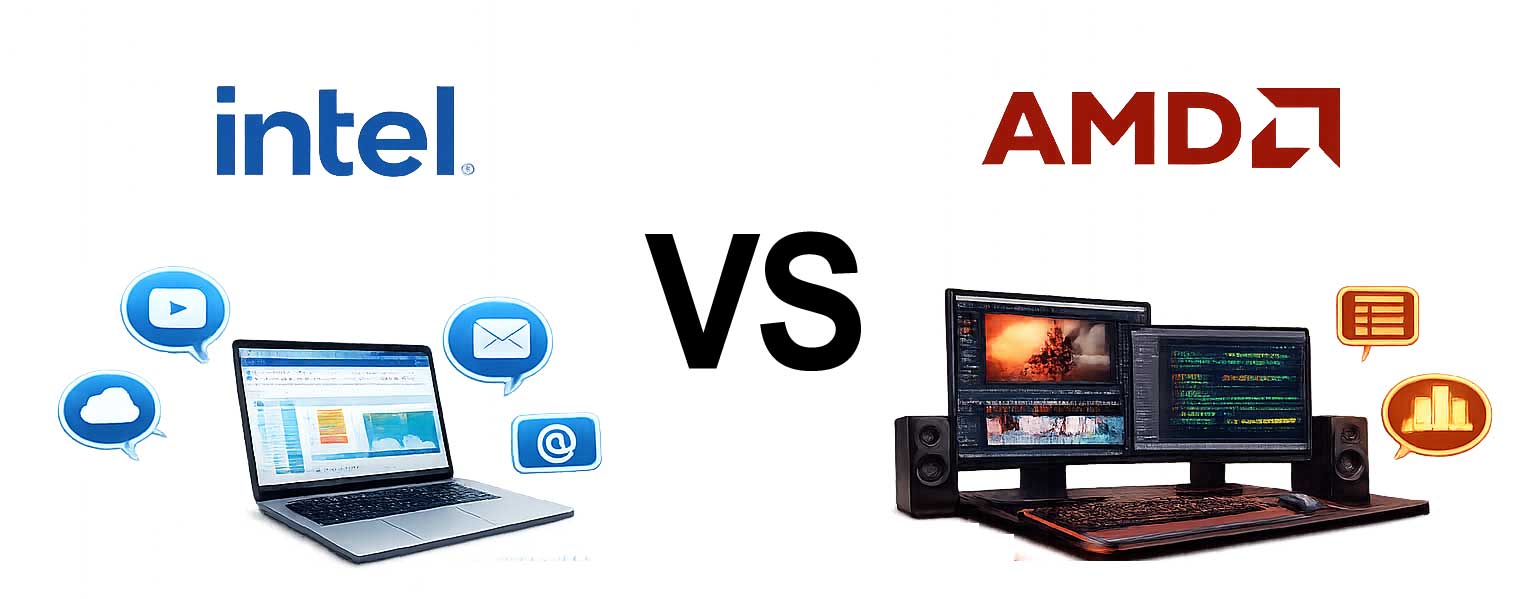
Intel Vs. AMD
Intel vs AMD: Choosing a PC Brain Without the Headache
When shopping for a new computer, one of the most common questions people ask is:
“Should I choose Intel or AMD?”
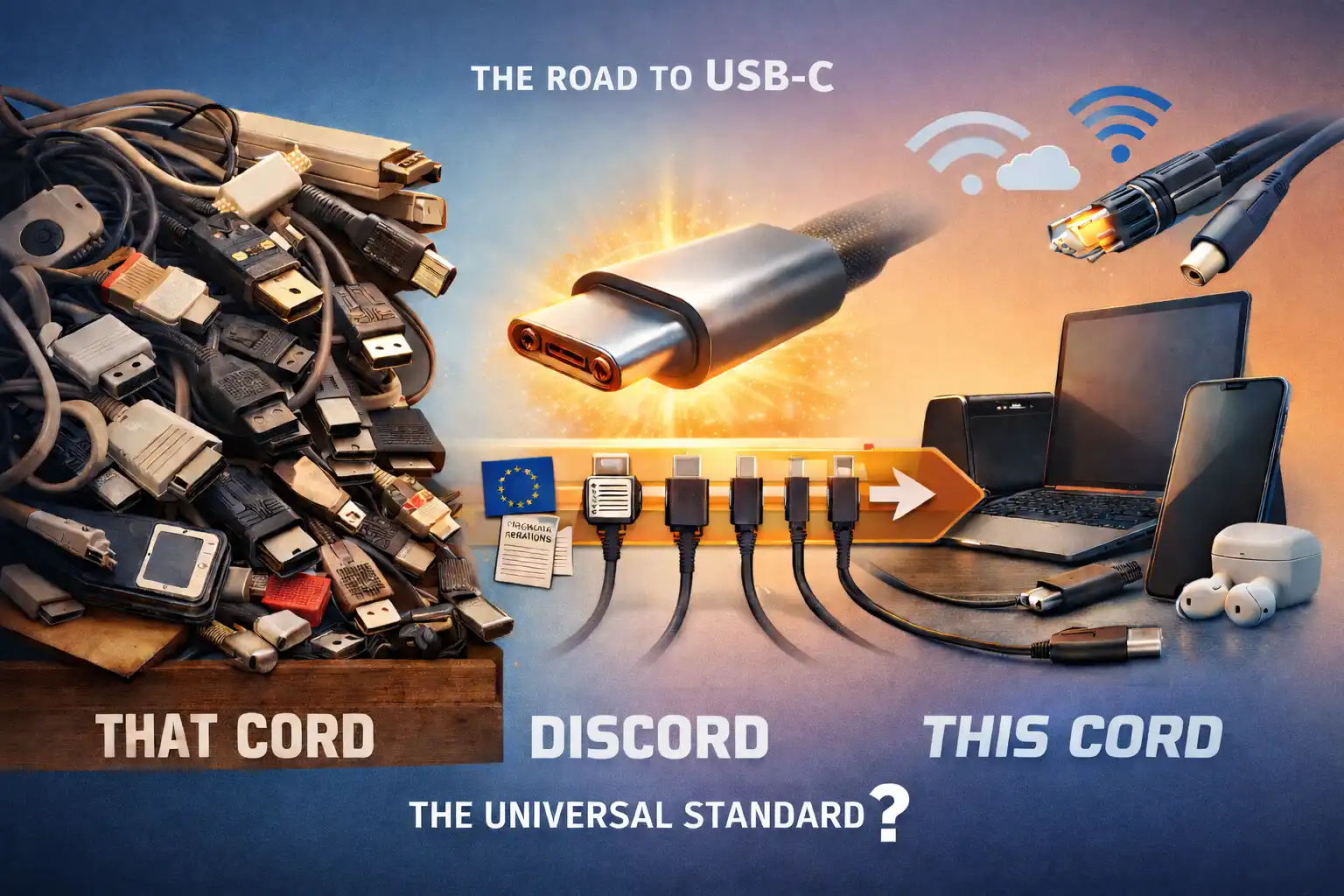
That Cord, Discord, and This Cord
Generations, Dongles, and the Long Road to USB-C
The Junk Drawer Tells the Story
Open the average junk drawer, and you’ll find a fossil record of modern technology: tangled cords from forgotten phones, chargers that fit nothing you still own, and mysterious adapters whose purposes were lost sometime around 2012.
February 2026 Jean Day Donation
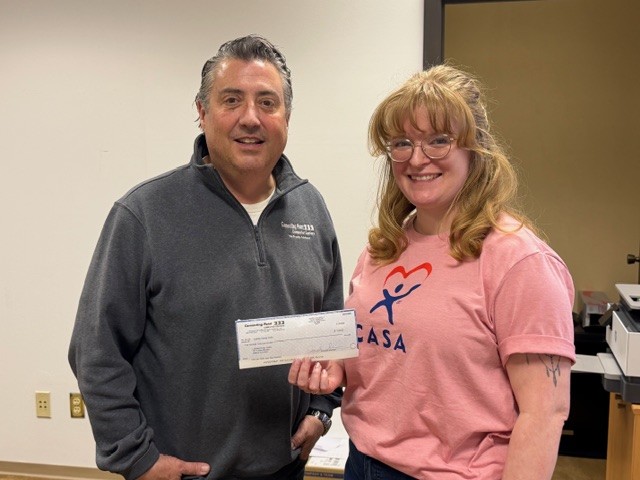
February 2026 Jean Day Donation Recipient: LaSalle County CASA Nathan Blaufelt from CPCC presents a check to Alexandria (Lexi) Wamhoff, Executive Director of LaSalle County CASA At Connecting Point Computer Center, giving back to our community is part of who we are….
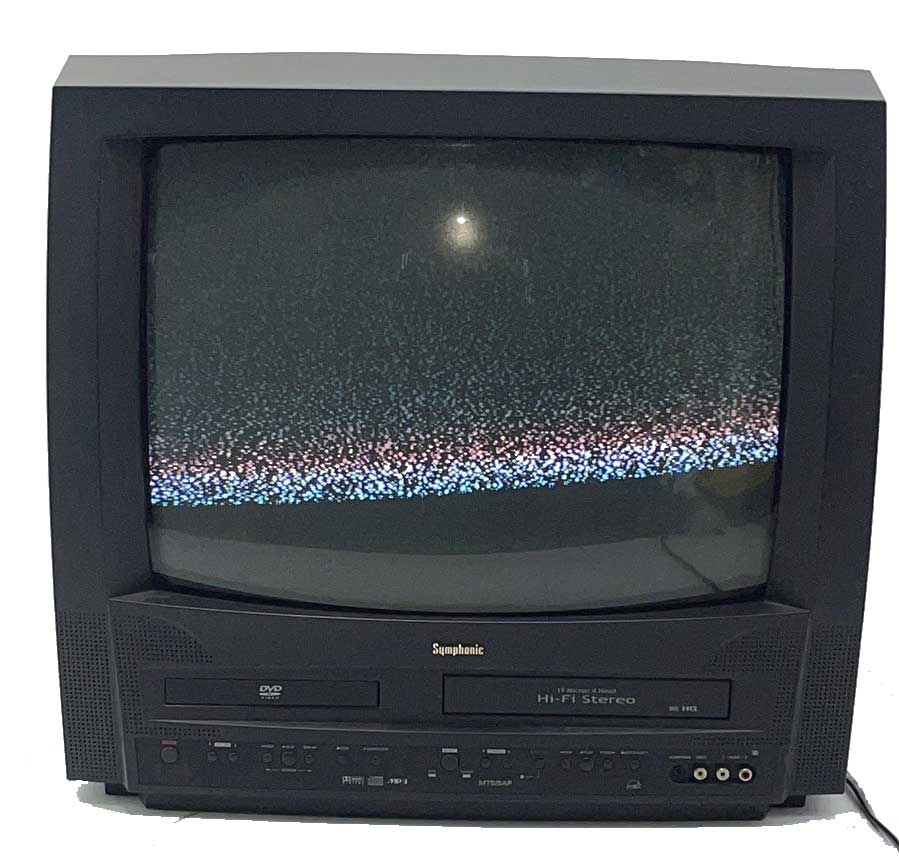
The CRiTical Curve
Every technology has a curve: a rise, a peak, a decline. But some curves don’t end because they’re finished. They end because we stop following them.
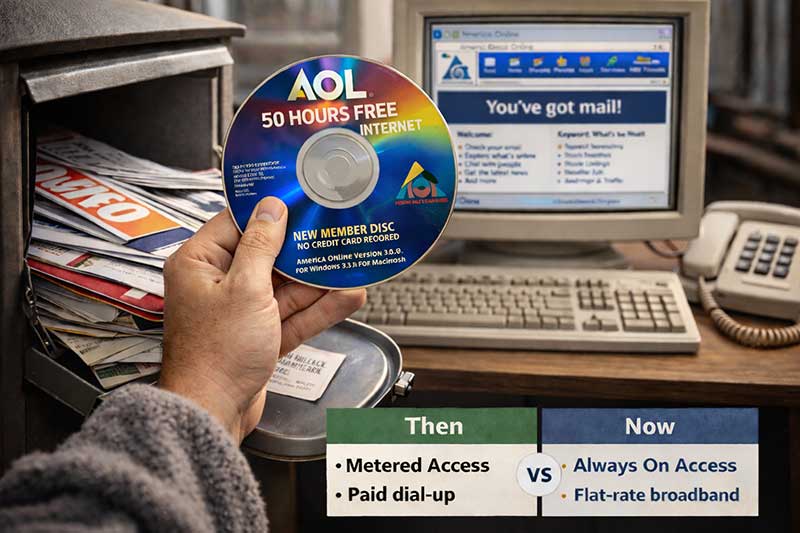
All out of AOL (LOL)
ALL‑OUT OF AOL (LOL) Picture it. It’s the mid-90’s. You open your metal mailbox—still searing from the afternoon sun—and sift through junk mail in your bathrobe and bunny slippers. Fluttering store flyers. A random magazine. Credit card offers you never asked for. A…
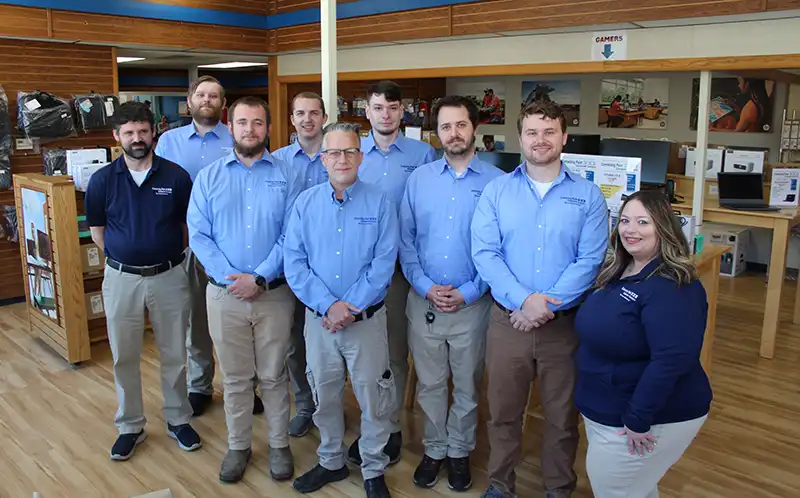
Employees
Administration & Management Jeff Borelli President-CEO Tom Hancock Vice President – Sales Manager Lee Thompson Director of IT Chris Willoughby Internet Operations Manager Sales Consultants Nathan Blauvelt Corporate Consultant John Riva Corporate Consultant Mitchell…

Lee Thompson Promotion Director of IT
Director of IT Services at Connecting Point Computer Center! For the past 15 years, Lee has been an integral part of our team, consistently demonstrating pride in his work, deep technical knowledge, and a true commitment to both our company and our customers. He is a…
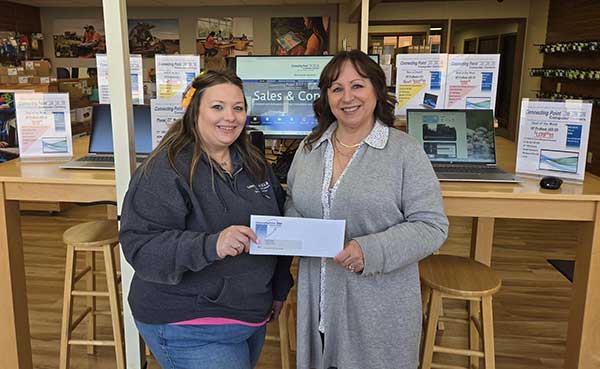
January 2026 Jeans Day Donation
Danielle DeCarlo from CPCC presents Betty Glynn with a check for our donation. At Connecting Point Computer Center, giving back to our community isn’t just something we talk about – it’s something we actively do. This January, our team came together once again for our monthly Jeans Day, and we’re proud to announce that our donation is going to an incredible cause: Cops for Cancer.
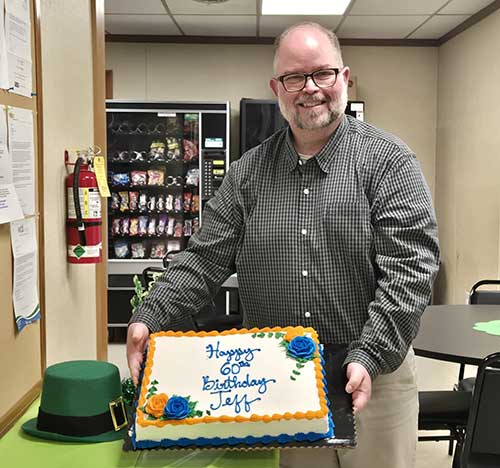
Celebrating Milestone Birthdays
Celebrating Milestone Birthdays at Connecting Point: Honoring Our Team At Connecting Point Computer Center, we believe our greatest strength is our people. Recently, we had the pleasure of celebrating two special milestone birthdays for valued members of our…

Time for Spring Cleaning
Time for Spring Cleaning… for Your Computer Too! Call us at 815-223-1052 to schedule yours today! Spring is the perfect time to freshen things up—and that includes your computer. Over time, systems slow down, collect unwanted files, and can even become vulnerable…

Customer Feedback
Customer Feedback Real Feedback From Real Clients Client feedback helps us refine our services, strengthen our processes, and deliver the exceptional support our customers deserve. Read firsthand experiences from businesses and individuals who trust Connecting Point…
Company
Company Since 1966 Connecting Point helps businesses stay secure, efficient, and ready to grow with reliable IT support, web deve.opment and practical digital solutions for your industry. Schedule A Consultation Call 815-223-1052
Ken’s Corner – Ken’s Retiring
Ken’s Corner – Ken’s Retiring This Ken’s Corner is both hard to write and easy to write. I’ll explain later. To turn on, or not turn on? That’s a question we’re going to play with today. In the early days of home computers, common wisdom said if you weren’t using your…

Ron Borelli IVAC Cornerstone Recipient
Honoring Our Founder: Ron Borelli Receives IVAC Community Cornerstone Award Connecting Point Computer Center is incredibly proud to share that our founder, Ron Borelli, has been named a recipient of this year’s Illinois Valley Area Chamber (IVAC) Community Cornerstone…
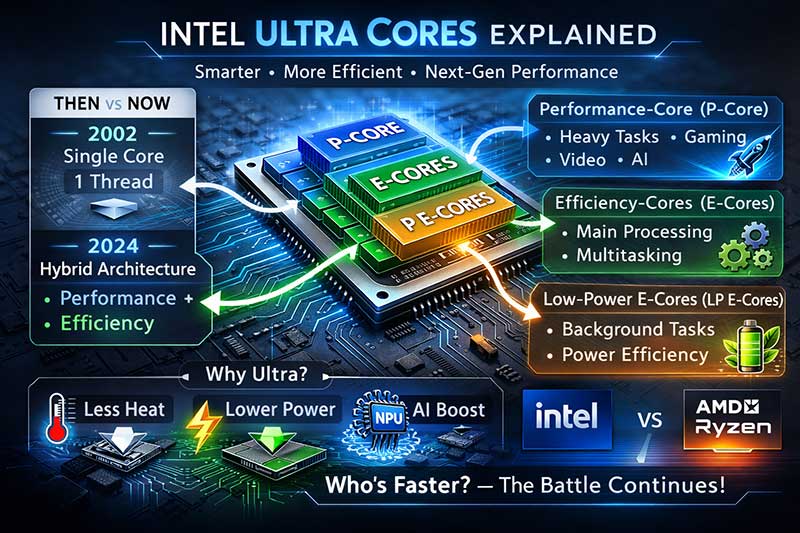
Intel Ultra Cores Explained
Ken’s Corner – Intel Ultra Cores Explained Intel introduced the Ultra Core series just over two years ago, and the 3rd generation of those processors is being released now. A common question I get is “What’s the difference between an Intel Core and an…
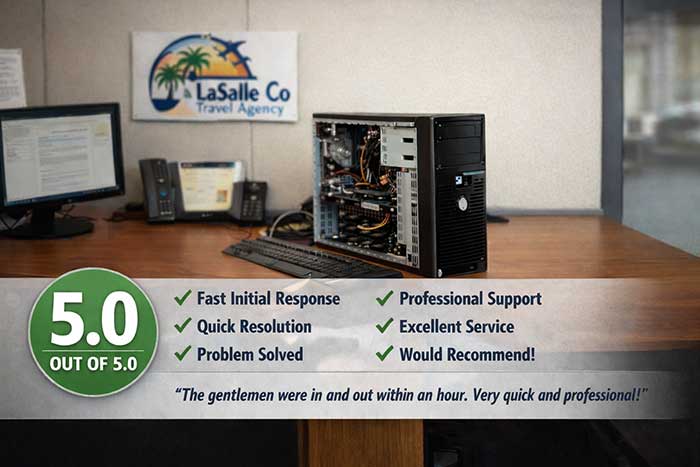
Customer Feedback – Desktop Upgrades
Subject: Survey Results: Ticket Completion Survey – LaSalle Co Travel Agency (Anna Lijewski) Customer Feedback – Desktop Upgrades Survey Name: Ticket Completion Survey …

AI AI Oh!
Artificial Intelligence: From Science Fiction to Everyday Reality What once was theory and science fiction has become reality in the last few years; real enough that it’s not only usable by the average person, it’s also nearly impossible to escape. Artificial…